Custom bot
Run the Farm Sim Game bot's features under your own bot name, avatar and status: Developer Portal setup, Application ID, token, intents and status messages.
On this page
- Before you start
- Create your bot in the Developer Portal
- Connect it to Farm Sim Game
- Settings explained
- Bot status messages
- What changes when your custom bot is running
- Troubleshooting
- The status says the token is invalid
- "Bot Token format looks invalid. Please copy it directly from the Discord Developer Portal."
- "Application ID must be a valid Discord Application ID (numbers only)."
- "Custom Bots require Gold Supporter status or higher."
- The bot is online but doesn't respond
- I want to go back to the normal bot
- Related
With a custom bot, the Farm Sim Game features in your server run under your bot: your name, your avatar and your own status line. You create the bot once in Discord's Developer Portal, paste its Application ID and Token into the dashboard, and invite it. You keep using the same dashboard and the same commands.
Before you start#
Custom bots need a Gold supporter tier or higher on this community. Without it, the Custom bot page says "This feature is unavailable unless this server has premium enabled and Gold status." See Premium.
Custom bots are an experimental feature and may not always work as expected. Please report
problems in #premium-support in the FSG Discord.
- A custom bot works in one server only: the community you set it up for. Inviting it to other servers may make it unresponsive.
- You need a Discord account that can create applications at discord.com/developers/applications.
- Keep your bot token secret. Anyone with it can control your bot.
Create your bot in the Developer Portal#
These are the same steps as How to Create a Discord Bot on the Custom bot page.
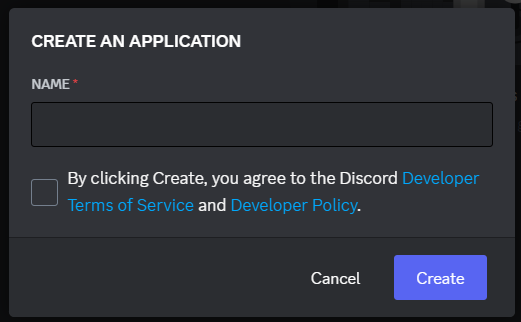
The Create an Application window pops up. Enter your bot's name, then click Create.
On the General Information tab, set the name, description and tags. The description becomes the bot's About Me, which members see when they click the bot.
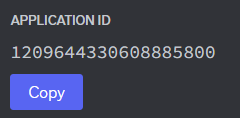
Copy the Application ID from the General Information tab. You'll paste it into the dashboard.
This is the name shown everywhere the bot appears: messages, the member list and so on.

On the Bot tab, copy the Token. If it isn't shown, reset the token to see it. Don't let anyone else see it.

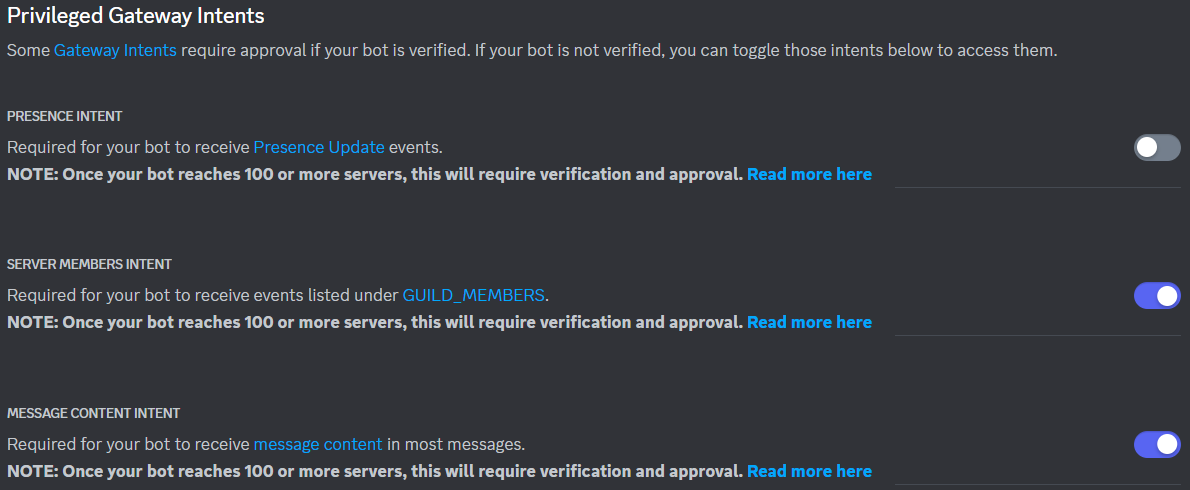
Still on the Bot tab, turn on Server Members Intent and Message Content Intent. Both are required. Without them the bot won't start.
Click the bot's icon to upload an avatar.
Connect it to Farm Sim Game#
It's under Bot in the sidebar.
In Custom Bot Settings, paste the Application ID and Token. Optionally type a Bot Status.
Click Update Bot Settings. You'll see "You Have Successfully Updated Custom Bot Settings!" and the page reloads.
The Bot Invite Link card now shows "Click here to Invite the bot to your Discord Server." Click it and add the bot to this community's server.
The Bot Status line under the fields updates by itself. You want to see Bot Is Online.
Slash commands may take up to an hour to show up in your server after the bot joins. Restarting Discord sometimes speeds it up.
Settings explained#
| Setting | What it does |
|---|---|
| Application ID | Your bot's ID, from General Information in the Developer Portal. Numbers only. |
| Token | Your bot's secret token, from the Bot tab. The page never shows a saved token again: the field says "Token saved. Leave blank to keep it, or paste a new one." Leave it blank to keep the saved token. |
| Bot Status | Up to 32 characters shown under your bot's name in the member list, after "Playing". |
| Remove Custom Bot | Disconnects your bot from your server and deletes its saved Application ID and Token. Only shown once something is saved. You can set it up again any time. |
The invite link adds your bot with the Administrator permission.
Bot status messages#
The Bot Status line shows what happened the last time the bot was started or checked, with "Last Update … ago" underneath. It refreshes every 10 seconds: green when online, red when there's a problem.
| Message | What it means |
|---|---|
| Not Setup Yet. | Nothing has been saved yet. |
| Bot Is Online | Your bot is running. |
| Bot Is Offline | Your bot was switched off and disconnected, for example after you cleared its Application ID. |
| Bot is Offline. Bot Application ID Invalid. (or Bot Application Invalid.) | The saved Application ID is missing or too short. |
| Bot is Offline. Bot Token Invalid. | The saved token is missing or too short. |
| Bot is Offline. Token Invalid. (sometimes followed by "Double check the Token…") | Discord rejected the token. The bot is disabled until you save a correct one. |
| Bot failed to connect. Attempt N of 10. | The bot couldn't log in. If it adds "Privileged Gateway Intents are not enabled", turn on both intents (step 7 above); the bot keeps retrying by itself. |
| Bot disabled. Enable "Server Members Intent" and "Message Content Intent"… | It failed 10 times because the intents are off. Turn them on, then click Update Bot Settings. |
| Bot disabled after repeated connection failures.… | It failed 10 times for another reason. Fix the problem, then click Update Bot Settings. |
| Bot disabled. Gold membership required. | The community's tier dropped below Gold. |
What changes when your custom bot is running#
- Your bot handles the server's events. Welcome messages, logs, reaction roles, game server posts and the other automatic features come from your bot. While the custom bot is active, the main Farm Sim Game bot skips your server's events, so members don't get everything twice.
- Both bots' commands show. The main bot's slash commands still work in your server, next to your custom bot's.
- Your bot only works in its own server. In any other server, its commands reply "This bot can only be used in the Discord server it was setup with via the Farm Sim Game website."
- Bot Name doesn't apply. The nickname setting is for the main bot. Your custom bot uses the username you set in the Developer Portal.
- Your settings stay the same. Everything you set on the dashboard applies to your custom bot.
The bot manager checks every minute, so a newly saved bot starts, and a removed bot goes offline, within about a minute. Bot Status is set when your bot starts: changing it while the bot is already online doesn't restart the bot.
Troubleshooting#
The status says the token is invalid#
- Copy the token again from the Bot tab (reset it if it isn't shown), paste it into Token and click Update Bot Settings.
- A token Discord rejected disables the bot. Saving the settings again turns it back on.
"Bot Token format looks invalid. Please copy it directly from the Discord Developer Portal."#
The website checked the token before saving and it doesn't look like a Discord token. Copy it again from the Bot tab, without spaces.
"Application ID must be a valid Discord Application ID (numbers only)."#
Copy the Application ID from General Information, not the token or the public key.
"Custom Bots require Gold Supporter status or higher."#
This community's tier is below Gold. See Premium.
The bot is online but doesn't respond#
- Make sure you invited it with the link on the Bot Invite Link card, into this community's server.
- Don't invite it to other servers. It only works in its own.
- Wait for slash commands to appear (up to an hour), then restart Discord.
I want to go back to the normal bot#
Click Remove Custom Bot and confirm. You'll see "Your Custom Bot Has Been Removed!". Within about a minute your bot goes offline and the main Farm Sim Game bot handles your server's events again. Then kick your custom bot from the server.